The Outbound CRM is your workspace for reaching the buyers the Outbound Agent finds for you or any leads you need to reach out to. Connect an email inbox, build a campaign with automated follow-ups, and manage every reply — all in one place. It takes you from a list of leads to real conversations with potential buyers, without leaving Unstoppable AI Chat.
How to open the Outbound CRM
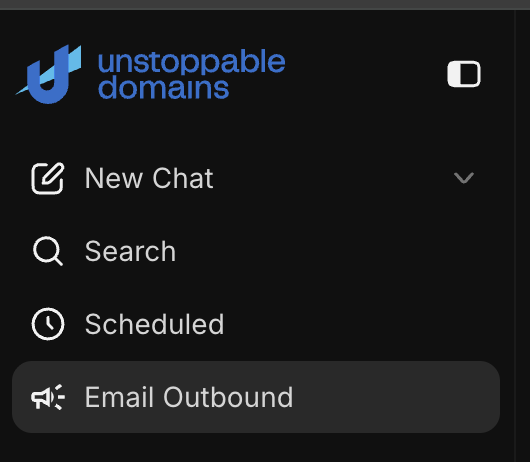
Go to unstoppabledomains.com/chat and in the sidebar, select Email Outbound.
You can also open it directly here.
The CRM is organized into four tabs
Leads, Inboxes, Campaigns, and Conversations

Leads
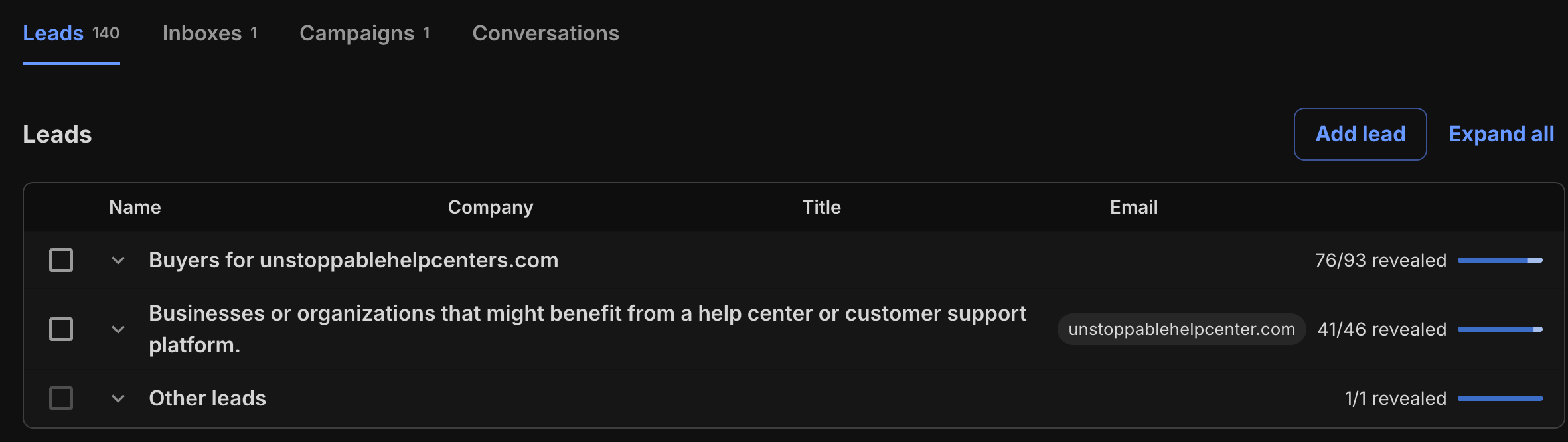
The Leads tab holds every lead generated by the Outbound Agent organized by run.
- Select a run to see the leads it produced.
- Pick the leads you want to reach out to.
- Create a campaign straight from your selection.
Add your own lead
You're not limited to agent-generated leads — you can add contacts manually on the Leads tab.
For each lead, enter:
- First name
- Last name
- Company
- Title
These fields double as personalization variables you can drop into your campaign emails (see Campaigns below).
Inboxes
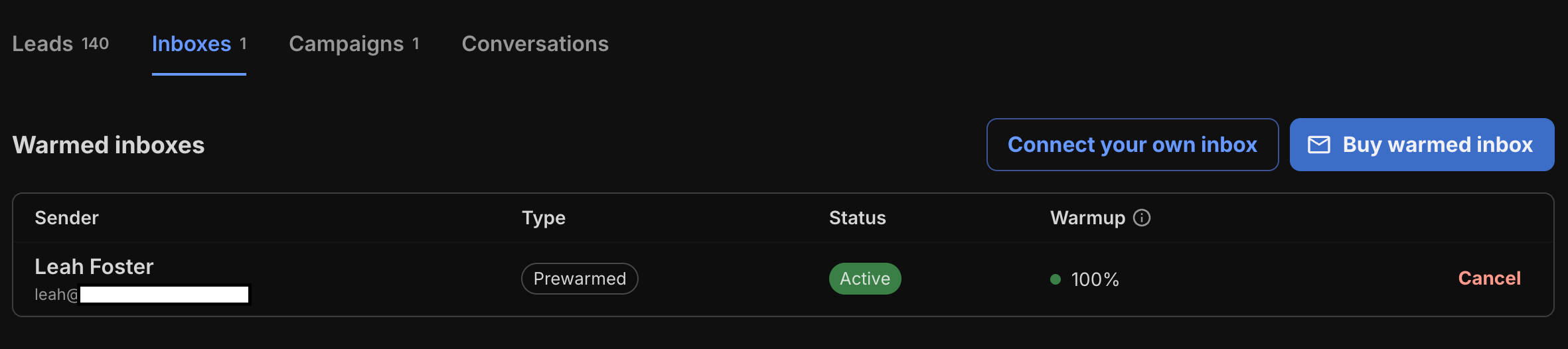
Before you can send a campaign, you need a connected inbox to send from. The Inboxes tab is where you connect, warm up, or purchase one.
Use a throwaway or secondary inbox — not your main email. Connecting an inbox lets our email provider send messages as this address and read and manage messages in the mailbox (needed for sending, syncing replies, and warmup). You can disconnect anytime to remove this access.
Connect your own inbox
We support native connections for Gmail and Outlook / Office 365, plus IMAP and SMTP for other providers.
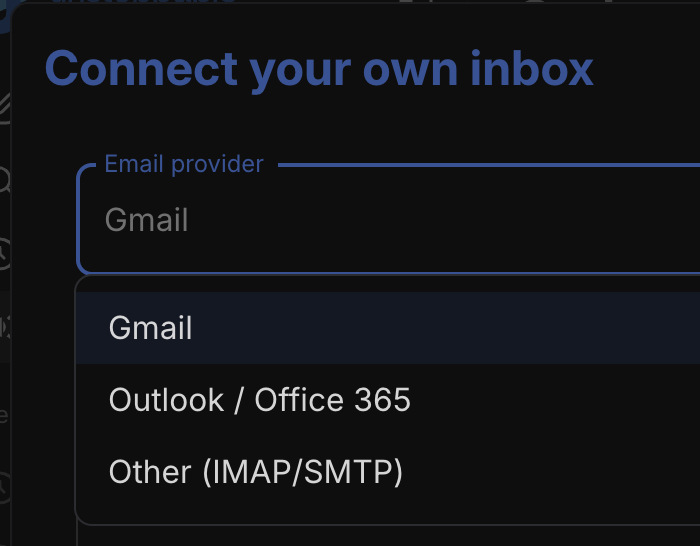
To connect, enter:
- Email address
- Sender first name
- Sender last name
- Password
Important — for Gmail and Outlook, use an app password, not your normal login password. An app password is a special, single-purpose password that lets an outside app access your mailbox without your main credentials.
Guides on App Passwords
- Gmail: Sign in with app passwords
- Outlook / Office 365: Set up application passwords
Warm up your inbox (recommended)
When you connect an inbox, we offer to warm it up for you. Warming up gradually builds your inbox's sender reputation so that mailbox providers (Gmail, Outlook, and others) learn to trust it — which means your real campaign emails are far more likely to land in the inbox instead of spam.

Here's how it works:
We'll gradually send and receive a small number of emails from your inbox (about 10/day to start) with a private network to build sender reputation. It takes ~2–3 weeks before the inbox is ready for real campaigns. It's free and you can turn it off anytime.
Why warm up matters:
- Better deliverability — brand-new inboxes that suddenly send lots of email look suspicious and get filtered. Warming up establishes a normal, trustworthy sending pattern.
- Stays out of spam — a good sender reputation keeps your campaigns in front of real people.
- Protects your sending volume — a warmed inbox can reliably send more without tripping spam filters.
- It's free, runs in the background, and you can turn it off anytime.
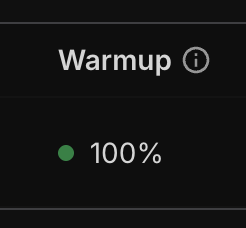
You can monitor the status of the warm up process on the Inboxes page.
Purchase a warmed inbox
Don't want to wait 2–3 weeks? You can purchase an already-warmed inbox for 20 credits per month, which supports up to 30 emails per day per inbox.

Purchased inboxes come with a generated name and email address and cannot be customized. You can cancel anytime.
Campaigns
The Campaigns tab lists your existing campaigns and is where you create new ones. Each campaign emails your chosen leads from your connected inbox(es), up to 30 emails per day per inbox.
Tip: Ensure that you put the domain you are looking to sell in the email content if you are doing domain outbounding.
Create a campaign
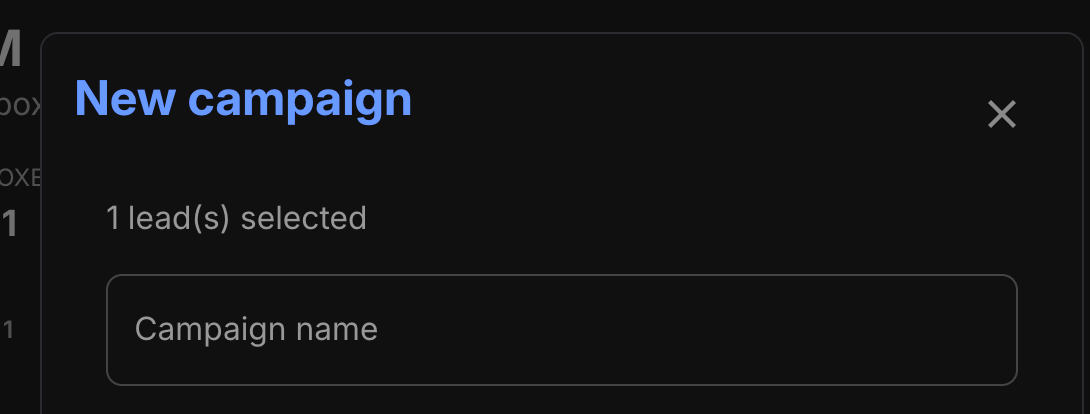
- Name your campaign.
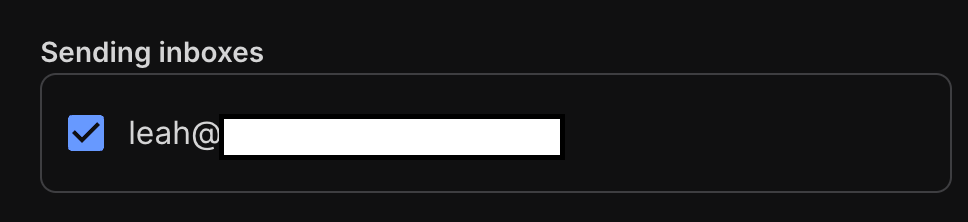
- Choose which inbox(es) to send from. Using more inboxes raises your daily sending capacity (30/day per inbox).
- Write your initial email — a subject and body.
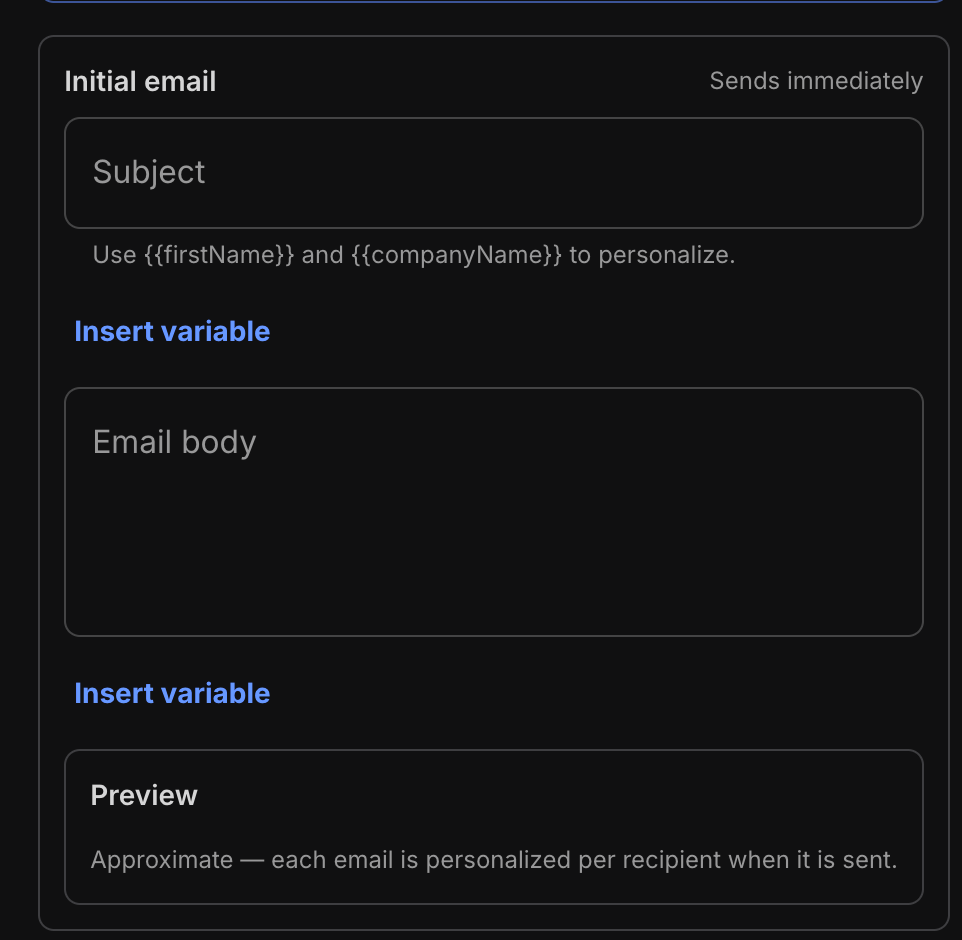
- Use the Draft with AI tool to generate or improve your copy.

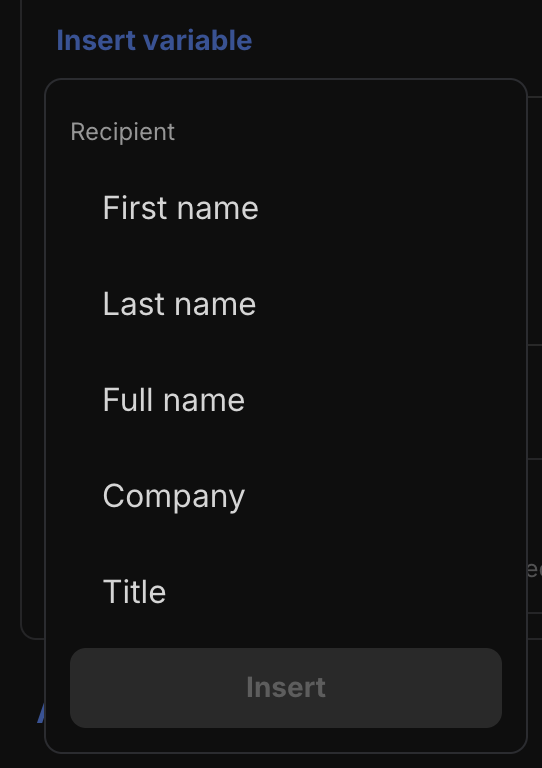
- Insert variables to personalize each email automatically: First name, Last name, Full name, Company, and Title. These pull from each lead's details.
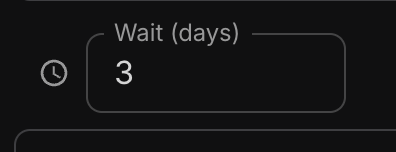
- Set up follow-ups (optional). Add follow-up emails that send automatically if a lead hasn't replied, with a wait period (in days) you choose between each one. You can add up to 6 follow-ups per campaign.

Tip: Personalize with variables and keep your initial email short. A relevant subject line and a clear, human message do more for replies than volume.
Conversations
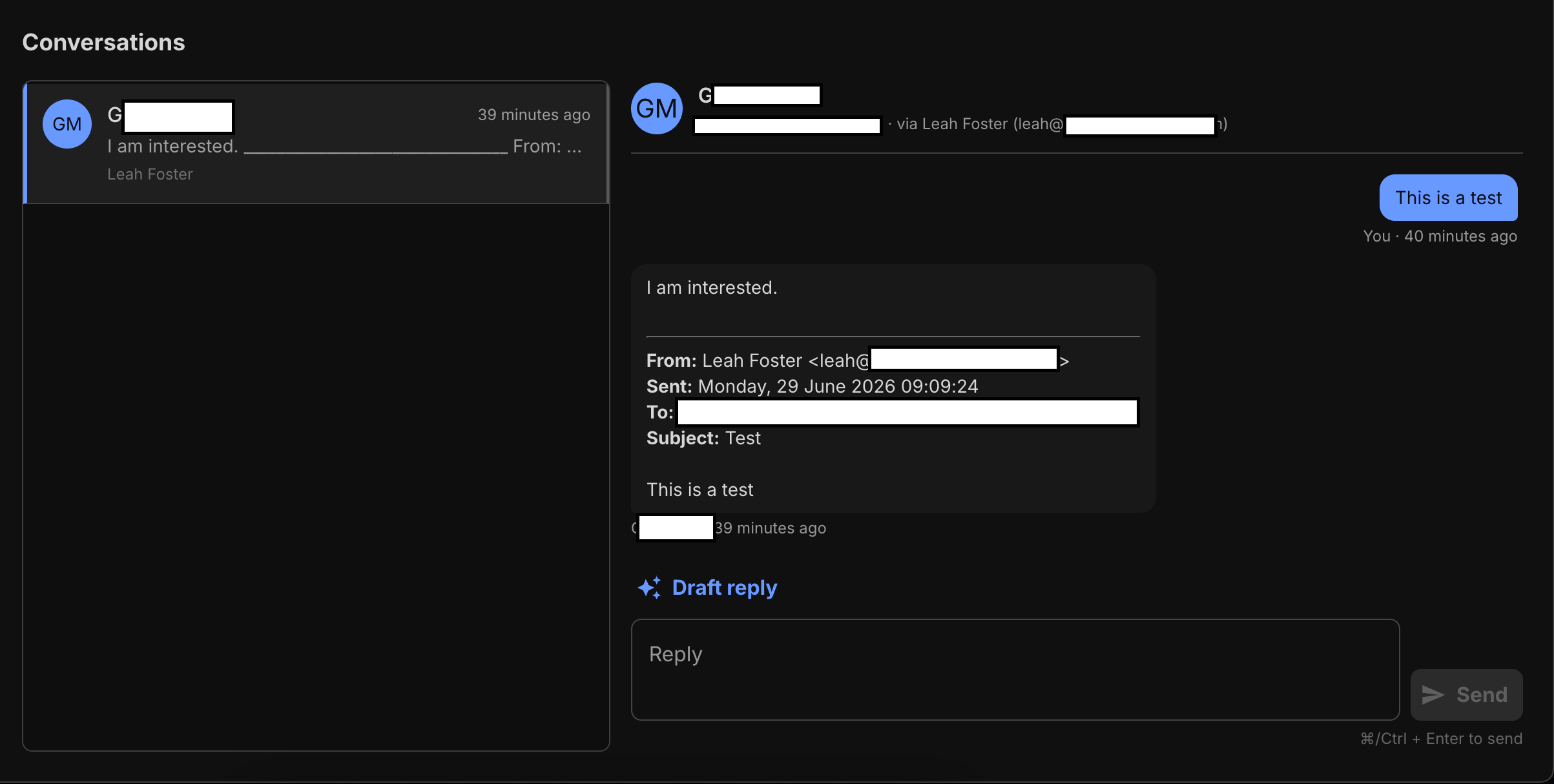
The Conversations tab is your shared inbox for every reply a campaign receives. From here you can read and write back to interested buyers.
You'll be notified by email
When a lead replies, we send a notification to your account email so you never miss a response.
Reply in one place
Respond directly from Conversations — each thread shows which inbox it was sent from, so your reply comes from the right address.
Draft Reply with AI
Use the Draft reply button to have AI suggest a response you can edit and send.
Replies pause follow-ups
When a lead replies, that lead is automatically paused from receiving any further follow-up emails — so no one gets an automated nudge after they've already responded.
Good to know
- Use a secondary inbox, never your primary email — connecting grants send/read/manage access, and warmup sends and receives mail on its behalf.
- Warm up before you blast. A new inbox needs ~2–3 weeks of warmup before it's ready for real campaigns.
- Mind your daily limits. Each inbox sends up to 30 emails/day; connect more inboxes to reach more leads per day.
- You stay in control. Disconnect any inbox, pause follow-ups, cancel a purchased inbox, or turn off warmup anytime.
Questions?
Need a hand getting set up? Learn more in Getting Started with Unstoppable AI Agents and the Outbound Agent article, or reach our support team at support@unstoppabledomains.com anytime.